Install Eureka
Chrome
Open Eureka in the Chrome Web Store and choose "Add to Chrome".
Eureka in the Chrome Web Store
Edge
Edge installs extensions from the Chrome Web Store. Open the same store page in Edge; the first time, Edge asks you to allow extensions from other stores. Allow it, then add Eureka.
Extension id
The extension id is pmkiepihlagmefkdcaodhbgeegcngjpg. Your IT department needs it if extensions are restricted on your computer. Everything they need, including the policy settings for Chrome and Edge, is on For IT departments.
Use the HTML view on EUR-Lex
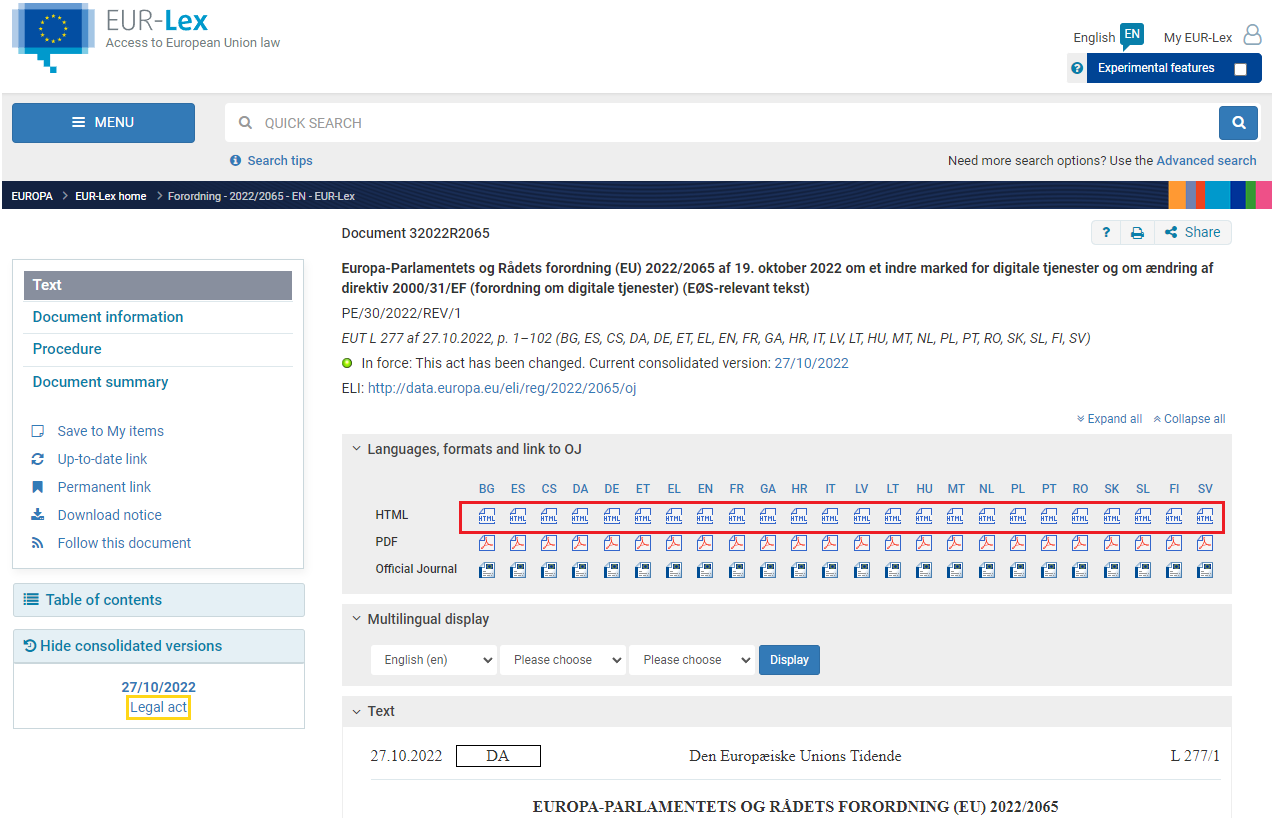
Eureka works on the HTML view of an act on eur-lex.europa.eu (the address contains /TXT/HTML/). It does nothing on the PDF or Official Journal views. On an act's page, choose "HTML" among the formats offered.
Sign in from the extension
Signing in is optional. You need it for e-mail alerts and to keep your follows across browsers.
- In the Eureka sidebar on EUR-Lex, open the settings and choose "Sign in".
- A tab opens on eureka.legal. Enter your e-mail address and open the sign-in link we send you.
- You land on a page that says "Connect your extension". The extension connects itself; the page then says that Eureka is connected in this browser. You can close the tab.
Your connected browsers are listed on your account page, where you can disconnect any of them.
It does not install
- Company computer: the IT department may have to allow the extension. Send them the link to For IT departments.
- Other browsers: only Chrome and Edge are supported.
- Anything else: contact us.